Connect a Grandstream UCM to a NumberGroup SIP trunk
Add a NumberGroup SIP trunk to a Grandstream UCM6200/6300 IP PBX with a Register SIP Trunk. Real config: sip.numbergroup.com host name, T-AAAAAA-NNN username and authenticate ID, caller ID, inbound and outbound routes, and the registration status check.
This is the working setup for adding a NumberGroup SIP trunk to a Grandstream UCM IP PBX (UCM6200, UCM6300 and 630x/A siblings). NumberGroup authenticates your PBX with a username and password, so you want a Register SIP Trunk rather than a peer trunk. Takes about five minutes once your trunk credentials are open.
When you ask us to set up the trunk, request Send Numbers As set to "International (+xx)" so inbound DDIs arrive in E.164 (+44…) for clean inbound-route matching on the UCM.
The credentials and settings your device needs to register against the NumberGroup SIP trunk are:
- Domain / registrar:
sip.numbergroup.com - Authorisation ID (also called SIP username): looks like
T-AAAAAA-NNNe.g.T-102377-001 - Password: a random string we generate per trunk
- User-Agent Type: we set this our side to match your device (e.g. 3CX Phonesystem, DDI in R-URI (Asterisk), RFC3261 Standard Trunk) so DDIs present in the format your equipment expects
- Send Numbers As: also set our side — pick the format that works best for your platform:
- International (+xx) — true E.164 (
+441214001262) for 3CX, Cisco, Yealink and most modern PBXs - International (xx) — bare digits (
441214001262) for Asterisk / FreeSWITCH dialplan regex - United Kingdom — UK format (
01214001262) for direct-register desk phones / softphones where humans read the Caller ID
- International (+xx) — true E.164 (
- Allowed IPs (optional): for an extra security layer we can lock the trunk to only register from your office IPs — tell us which when you ask
Once you have the credentials, the rest of this guide walks through the device-side config. If you'd rather skip the config altogether, ask us — we'll do it for you on most common PBXs and phones.
Step 1: add the trunk
Log in to the UCM web GUI and go to Extension / Trunk → VoIP Trunks, then click Add SIP Trunk.
- Type: Register SIP Trunk
- Provider Name: NumberGroup (or anything memorable)
- Host Name:
sip.numbergroup.com - Username:
T-AAAAAA-NNNfrom the email we send you (e.g.T-102377-001) - Authenticate ID:
T-AAAAAA-NNN— the same value as the Username - Password: your trunk password from the email we send you
Click Save, then Apply Changes.
Why Username and Authenticate ID match: The Authenticate ID is the SIP subscriber ID used for authentication; on a NumberGroup trunk it's the same value as your Username — your T-AAAAAA-NNN.
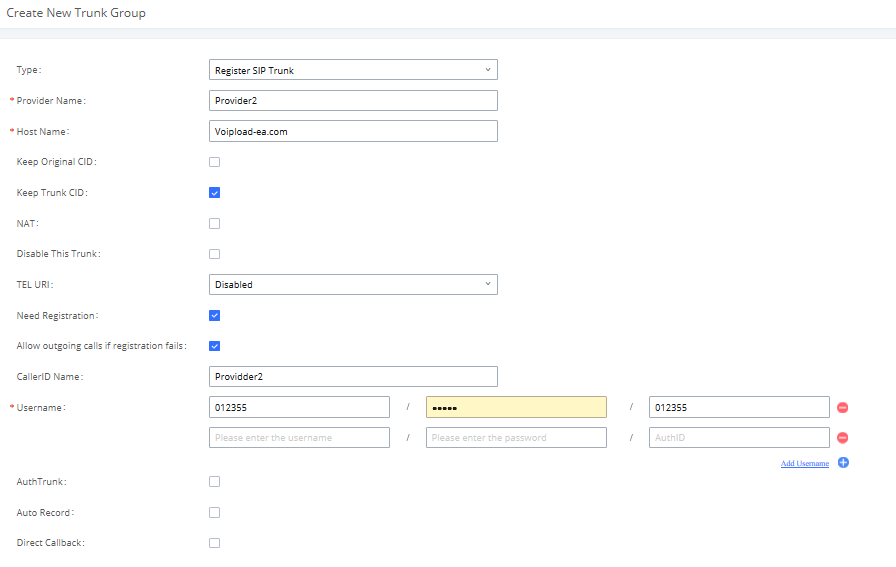
sip.numbergroup.com, tick Need Registration, and put your T-AAAAAA-NNN in both Username and AuthID. The values pictured are the vendor's example — use the ones from the email we send you.Step 2: outbound caller ID
So your DDIs present correctly on outbound calls, set the trunk's caller ID to a number you own:
- On the trunk, set Keep Trunk CID and the trunk CallerID to one of your NumberGroup DDIs, or set a per-extension DOD (Direct Outward Dialing) number that is a valid DDI.
- If the presented caller ID isn't one of your DDIs, outbound calls are rejected with a 403.
The UCM's full caller-ID priority order is in Grandstream's own SIP Trunks guide, linked at the foot of this page.
Step 3: inbound and outbound routes
- Inbound: under Extension / Trunk → Inbound Routes, map your DDIs to the right extension, ring group or IVR (use a DID pattern to route each number).
- Outbound: under Extension / Trunk → Outbound Routes, send your dialled patterns out via the NumberGroup trunk.
Step 4: verify registration
- Check System Status → Dashboard — the trunk should show as registered
- If the status shows Rejected, the UCM didn't register: confirm
sip.numbergroup.comis reachable and re-check your trunk credentials - We can confirm the trunk has registered our side — ring us or check your email for the "trunk live" confirmation
- Place a test call out, and ring a DDI from a mobile to test inbound
When it doesn't work
Trunk status shows "Rejected"
- Wrong Username, Authenticate ID or Password — check against the email we sent when we set up the trunk
- Host Name must be
sip.numbergroup.comexactly
One-way audio
Usually NAT or a firewall rewriting SIP. Enable the trunk's NAT option if the UCM is behind NAT, and disable SIP ALG on your router.
Set the fraud caps before going live
Ask us to set the trunk's Fraud Detection Simultaneous Calls and a Daily Spend ceiling a little above your real peak, so a compromised extension can't dial through out of hours. See our UK telecom fraud guide.
Source: the device navigation in this guide follows Grandstream — UCM6xxx Series SIP Trunks Guide. We keep the click-path with the manufacturer so it stays current — the NumberGroup trunk values above are the part specific to your account.
SIP trunks at carrier cost
Run your own Grandstream UCM, or let us host a cloud PBX for you — Membership covers SIP trunks (free, up to 25 concurrent calls), unlimited UK numbers, hosted PBX and every smart feature. £149/mo flat.